Turn any PDF into a quiz.
Drop in a lecture PDF, a textbook chapter or a scanned handout. Quibly reads it and writes a quiz, flashcards and true/false questions built from your own material.

How it works
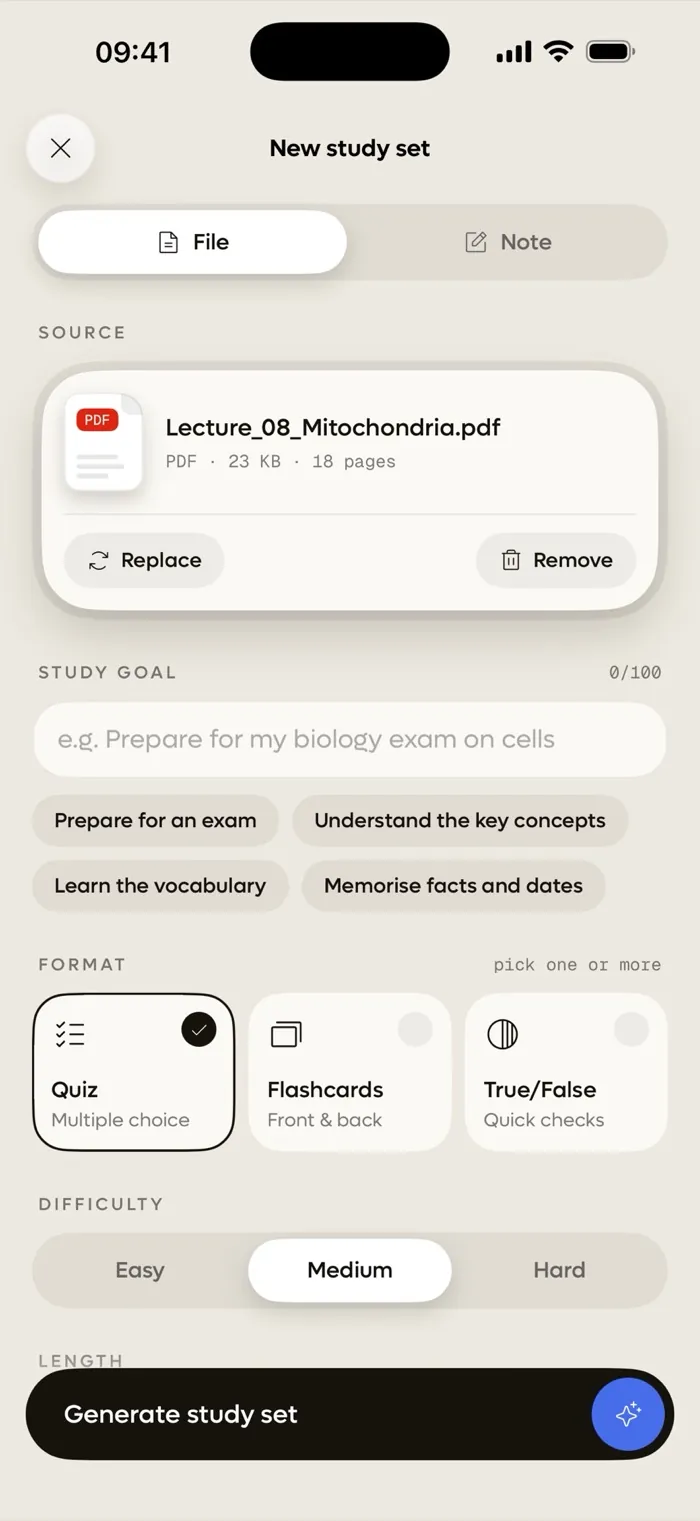
Add your PDF
Pick a PDF from Files. Scanned pages work too: Quibly reads the text right on your iPhone.
Choose what you want
Multiple choice, flashcards, true/false or a mix. Set a study goal, the difficulty and up to 50 questions.
Start answering
Your quiz is ready in seconds. Miss a question and Quibly shows the right answer and why.
Why students use Quibly for this
Works with scanned PDFs
Photocopied handouts and scanned book pages are PDFs too. Quibly reads the text from the page images on your iPhone before it writes your questions, so you are not limited to PDFs with selectable text.
Questions that follow your material
Every question comes from the PDF you added, not from a generic deck. Add a study goal, like preparing for an exam or learning the vocabulary, and the questions lean that way.
In the language of your PDF
A PDF in Spanish, German or French gets questions in that language. Your study goal can steer it too.
Questions
Can I make a quiz from a scanned PDF?
Yes. Quibly reads the text from scanned pages on your iPhone, then writes the questions.
How many questions can one PDF make?
Up to 50 questions per study set. You choose the number before you start.
Do I need an account to turn a PDF into a quiz?
No. There is no sign-up. Open the app, add your PDF and start.
Is it free?
Quibly is free to start. A Quibly Premium subscription unlocks more study sets and features.
More ways to study with Quibly
Free to start on iPhone.
No account. Requires iOS 18 or later.